
Receive / macOS
Decode SSTV on a Mac, starting with a known WAV.
Separate the decoder from the radio setup. Recover one known picture from a local file first; then add the receiver, audio interface or application sound.
By Alex Carter for CannedRocket · Updated .
SSTV Signal Desk has a native Mac desktop edition, alongside its iPhone and iPad editions. The US App Store price checked on 2 November 2026 is $2.99 upfront; local prices can differ. Both iOS and macOS 2.0.4 are available. This guide is published by the app's developer.
SSTV Signal Desk on the App Store Start with SSTV Lite
Lite 2.0.4 offers unlimited built-in practice. A free reception is used only after a complete image is saved; failed or partial receptions do not count. Check the remaining allowance in the app before saving completed imported recordings. Pro is the full upfront-purchase edition; the Lite unlock is a separate purchase.
1. Get a signal with a known answer
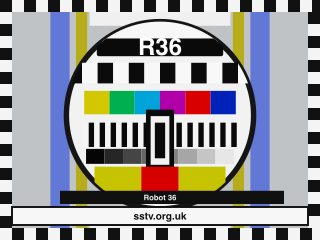
Download the Robot 36 test WAV and keep the original file. It is mono, 48 kHz, 16-bit PCM, with 38.315 seconds of audio. The image is 320 × 240 pixels. The file includes the identification header, image and surrounding silence.
This is generated practice audio, not a satellite recording or an antenna measurement. You do not need a radio, an audio cable or microphone access for file replay.
2. Replay from the beginning
- Choose the SSTV signal category. SSDV and DRM are different receive paths.
- Use the Mac file-replay input to open the WAV. The retained demonstration uses Open Replay….
- Start at the beginning, keep automatic mode detection enabled, set normal 1× playback and leave looping off.
- Let the complete frame finish. The header should identify Robot 36; the picture then builds line by line.
- Compare the completed picture with the reference and keep the recording with the result.
Watch the actual Mac replay. That video is a retained Pro 2.0 recording, not a new 2.0.4 benchmark. It demonstrates the file workflow; it does not establish weak-signal performance or compatibility with a particular radio.
3. If the file does not produce a picture
- No input activity: confirm the selected source is the file, not a disconnected microphone or audio device.
- Audio is present but no frame begins: return to the start so the VIS identification header is included. Check the signal category before changing gain.
- A partial or damaged picture: retry the unchanged original WAV. Do not diagnose antenna quality from a local generated sample.
- It works in another decoder: record both versions, mode, sample rate, file hash and actual results. One successful file is not a general decoder comparison.
For a report, include the app version, macOS version, input choice, original filename, expected mode and what happened. Share only recordings you have permission to redistribute. Receiving support.
The WAV plays, but SSTV will not decode: check the sample rate
A WAV's sample-rate label tells the player how quickly to read its samples. Changing that label is not resampling. If a recording made at 48,000 samples per second is simply labelled 44,100, playback becomes slower and every tone moves down in pitch. A file can still sound like SSTV while its identification tones are wrong.
- Keep the correctly labelled original. Check its sample rate, channel count and duration before exporting. Keep playback at 1×, with no time-stretch or pitch effect.
- Convert the samples when a different rate is needed. In an editor, use its resample or export conversion, rather than a command that only reinterprets the existing samples at a new rate.
- Compare duration and pitch with the original. A real sample-rate conversion should keep them substantially unchanged. A sudden change from about 38.3 to 41.7 seconds is a useful warning in this particular practice file.
- Retry from the beginning. Include the VIS header and record the decoder version and actual result. A rate check does not replace checks for clipping, missing audio or the wrong signal category.
For example, with FFmpeg already installed, this command makes a genuine 44.1 kHz, mono, 16-bit PCM copy from a correctly labelled original:
ffmpeg -i original.wav -ar 44100 -ac 1 -c:a pcm_s16le resampled-44100.wavUse a new output filename. This command does not repair an already incorrect input-rate label: return to the correct original before converting. If your receiver accepts the unmodified 48 kHz practice WAV, conversion is unnecessary.
What the file check actually showed
On 3 November 2026, a headless check with pinned Open-SSTV v0.6.18 compared three versions of the same generated Robot 36 signal:
| Input | Duration | Observed CLI result |
|---|---|---|
| Original 48 kHz PCM | 38.315 seconds | Robot 36, 320 × 240 image; exit 0 |
| Genuinely resampled to 44.1 kHz | 38.315 seconds | Robot 36, 320 × 240 image; exit 0 |
| Original samples with only the label changed to 44.1 kHz | 41.703 seconds | No SSTV header found or unsupported mode; exit 1 |
The original and genuinely resampled files both retained a measured leading tone near 1,900 Hz. The deliberately mislabelled negative control measured about 1,750 Hz with a 0.1-second FFT window. Thus 44.1 kHz itself was not the failure in this check; changing the label without converting the samples was.
Read the checksums, pinned revision and recorded results, or download the reproduction script. The script needs FFmpeg, NumPy, Pillow and the dependencies of the pinned Open-SSTV source; it does not install anything for you.
This is a generated-file interoperability check, not a new SSTV Signal Desk 2.0.4 device test, a GUI comparison or an RF performance benchmark. Other decoder versions and manual-mode settings may behave differently. The intentionally incorrect file is a negative test case, not a recommended receiving sample.
Does adding silence fix a recording that starts late?
No: blank audio cannot restore an identification header or image lines that were never recorded. Keep the original capture, start recording before the transmission and replay from the beginning. If an editor trimmed the start, return to the uncut recording before changing gain or format.
A four-case check on 5 November 2026 used the same generated Robot 36 PCM and pinned Open-SSTV v0.6.18 automatic file decoder:
| Input | Duration | Observed result |
|---|---|---|
| Complete practice audio | 38.315 seconds | Robot 36 identified; 320 × 240 image, exit 0 |
| Two seconds of silence before the complete audio | 40.315 seconds | Robot 36 identified; 320 × 240 image, exit 0 |
| First three seconds removed | 35.315 seconds | No SSTV header found or unsupported mode, exit 1 |
| Silence added to that cropped recording | 37.315 seconds | Still no automatic identification, exit 1 |
Preserving the complete signal mattered in this check; padding the cropped copy did not replace it. The two successful images were not pixel-identical, so this result establishes identification and output size, not equal image quality. Some decoders can use a known mode to attempt a partial reception without VIS, but that was not tested here and cannot recover missing audio.
For a useful help request, keep both the uncut recording and any edited copy, note the trim position, and include the expected mode and decoder version. If only a late capture exists, say so rather than presenting it as a complete transmission.
Actual results, file hashes and commands · Reproduction script · Setup and scope notes. These are generated-file checks, not an SSTV Signal Desk device test, an RF benchmark or a claim that every decoder needs VIS.
4. Add the real audio path one step at a time
If the original WAV decodes but a live source does not, keep the working decoder settings and change only the input path. Choose the row matching what you actually have:
| Your source | Input path | First check |
|---|---|---|
| A complete SSTV audio WAV | File replay / Open Replay… | Start at the beginning, use 1× playback and leave Loop off. |
| A radio or USB sound interface | The intended Core Audio input | Check the selected device and the channel carrying demodulated audio. A selected device is not proof that its channel contains a signal. |
| Audio played by another Mac application | The app's selected-application audio source, where available | Choose the source application in the system picker, allow the requested permission and confirm that it is actually playing. |
| An SDR I/Q recording | A matching supported SDR profile, or demodulate to audio first | I/Q represents radio samples, not ordinary SSTV speaker audio. A .wav filename alone does not identify the right input path. |
Once replay works, select the intended physical Core Audio input and verify the device's channel mapping and sample rate. For a radio recording, preserve the start of the transmission and avoid clipped levels. Loud audio is not the same as clean audio.
Version 2.0.4 also provides selected-application audio on Mac. Use the system picker to share the intended application; it is a separate source from microphone/Core Audio input. Follow the actual macOS permission prompts. A source application's output and an SDR's wideband I/Q data are not interchangeable.
Audio, I/Q and remote SDR input reference explains the distinctions. For later replay of a real pass, use the SDR recording workflow. Check the dated official ARISS announcement before assuming an ISS frequency, mode or transmitting window.
Why does replay work while the radio stays blank?
A successful known-file decode checks that file and the selected decoder path. It does not check radio tuning, squelch, interface channel selection or clipping. Return to the original WAV as a control, then add one live-audio stage at a time. Keep the received recording when possible so someone else can investigate the same signal.
Using a phone instead? Follow the iPhone and iPad file-decoding walkthrough. For the complete sample and reference picture, use the WAV checklist.
Keep the exercise reproducible
A useful first result is a saved picture linked to its original audio and settings. It lets you distinguish a decoding problem from a routing or radio problem, and gives other operators something concrete to investigate.
More protocol samples · Robot 36 timing · Compare the app editions.
App Store
Get SSTV for iPhone, iPad and Mac
Start with free practice in SSTV Lite, or choose the full SSTV Signal Desk (Pro) edition. Both editions are available for iPhone, iPad and Mac.
Lite includes a successful-reception allowance and optional in-app purchases. Pro is a separate one-time purchase. See your local price on the App Store, or compare the editions.