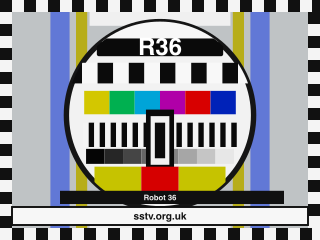
No radio is needed. Start with one clean recording and a picture you can recognise: a Robot 36 test card.
Watch the recording become a picture
Actual file replay in SSTV Signal Desk 2.0 on Mac. Not an off-air recording: the audio was generated from the test card below. The soundtrack is the same WAV at reduced volume. This is the Pro app; Lite uses the same analog SSTV decoder.
The VIS header identifies Robot 36, then the image builds line by line. The frame is 320 × 240 pixels. The complete WAV lasts 38.315 seconds, including its header and surrounding silence.
The green trace is the live audio FFT; orange is peak hold. The waterfall shows the most recent 10 seconds. The display narrows to a 6 kHz audio span, using a 1,024-point FFT and a Hann window. Levels are dBFS, not calibrated RF power. These are measurements of the file input, not an antenna signal.
At the end, the receiver returns to Idle and Images reads 1. The completed picture, peak hold and last waterfall remain visible.
Get Lite and the same recording
Use an iPhone, iPad or Mac. Lite 2.0 includes 3 free SSTV or Weather Fax receives. One is counted when a supported mode is identified, even if reception does not finish. This is a total allowance, not a daily reset.
Save robot36.wav in Files or Downloads so you can select it in the app. 3.7 MB; mono, 48 kHz, 16-bit PCM. You do not need to transmit, use the microphone or wait for an event.
Check the signal before importing
Begin at low volume: SSTV is a sequence of tones, not speech. Playing it here does not use a Lite receive. Import the file in the app rather than decoding it through a speaker.
The transmitted reference. The recovered picture may have small colour and edge differences.
Recover your first picture
Select SSTV receiving. Use the SSTV signal category, not SSDV, DRM or Weather Fax. Keep automatic mode detection enabled so the file's VIS header can select Robot 36.
Import the downloaded WAV. On iPhone or iPad, tap Open audio; the Open Audio File picker lets you select robot36.wav. File decoding starts after selection. On Mac, use Open Replay…, choose the WAV, set playback to 1× with Loop off, then start the receiver.
Let the whole frame finish. Look for Robot 36 and the image progress. The signal lasts about 38 seconds at normal playback speed. Do not restart it just because the first lines are black or grey.
Compare your image with the card above. You should see the circle, colour bars and Robot 36 label, with sstv.org.uk visible along the bottom. Slightly softened edges are normal for this analog mode.
The sample does not decode
Confirm that you opened the WAV as file replay, selected SSTV, began at the start of the file and left Loop off. If the VIS header was skipped, select Robot 36 manually before the next attempt. A new attempt can use another trial receive.
If it still fails, contact support with your app version, device, remaining receives and the filename robot36.wav. This known sample removes radio tuning and microphone routing from the diagnosis.
After your first decode
Share your image
On iPhone or iPad, open Receive log, select the saved picture and use Share. Tell other listeners which mode, app version and input you used. Label this one as a test-file decode, not a received satellite image.
Feedback is welcome whether the picture worked or not. Send your experience; omit private station details and recordings you do not have permission to share.
Keep Lite, or unlock it once
You can continue with the remaining trial receives. For unlimited receiving and the digital-image and advanced transmit tools, choose Permanent Full Unlock inside Lite. It is a one-time in-app purchase, not a subscription; the App Store shows the current local price.
Already bought the Lite unlock? Use Restore purchases with the Apple account that bought it. Purchase and receiving help.
Experienced operators: go straight to Pro
Get Pro: SSTV Signal Desk for the full app as an upfront purchase. It has no trial receive limit. Pro and the Lite unlock are separate purchases; you do not need both.